.png)
Search Results
54 results found with an empty search
- Intentional Connection: Creating a Classroom Community in Your LifeFlex Course
Online courses have their challenges when it comes to creating a sense of community between you and your students, and LifeFlex courses even moreso. Without a synchronous meeting time where students can see each other in a classroom or even on Zoom, it can be difficult to connect with your students and encourage them to connect with each other. Fortunately, there are a plethora of Flex-friendly ways to build community within your course, both as a curriculum developer and as an instructor. Building Community Into the Curriculum The most consistent way to build community in your Flex course is to integrate social aspects into the course itself by: Offering Optional Weekly Live Sessions Time for these live sessions is built in to undergraduate Flex courses, but it's available as an option for graduate courses too. These hour-long live sessions held on Zoom do not teach new content, and instead serve as communal office hours, where students can ask questions and facilitate discussion based around what they're stuck on, confused about, or interested in. For students whose schedules allow them to attend, this can be a valuable way to meet their peers and get a sense that they're not working through their program alone. For students who can't attend the live session, the Zoom recording allows them to reflect on the discussion and see their peers engage with the material. Harmonize Discussions and Annotations Harmonize is a discussion tool integrated directly into Brightspace, that automatically grades student responses based on factors like numbers of posts and replies and word count. Not only do these discussions create less grading for low-stakes, write-to-learn or reflection assignments, they encourage students to read, respond, and react to their peers’ work. Harmonize also allows students to annotate and have discussions directly onto pdfs, mimicking an in-person discussion about a specific reading. Video Presentations or Introductions Students are more than just names in Brightspace. To better match names to faces, you can build assignments that require students to record and post a video to a discussion forum. It can be a low-stakes introductory assignment asking students to introduce themselves (a perfect candidate for an autograded Harmonize assignment), or it can be a mid-semester or culminating presentation assignment where students are sharing what they’ve learned and researched about a particular topic. For larger presentations, encourage students to choose topics that they can relate to their particular interests, adding more opportunities for you and their peers to get to know them. Building Community During the Term Once the course is running, there are many ways an instructor can encourage students to collaborate and communicate, such as: A Muddiest Point Forum or a Class Q&A Create an optional discussion forum or Q&A in Harmonize where students can ask any questions they have about the course and its content, and answer each other. You as the instructor can encourage students to post and respond in this forum during your regular communication with your class. You can even spotlight certain questions and responses in announcements and emails, or use the forum as a stepping stone for weekly optional live sessions (if those are built into your course). This can also be a way to get feedback about the course. If multiple students agree that they enjoy an aspect of the course (or they don’t), that is not only something they can talk about together, it’s helpful information for you and for CTLT so we can continue to improve the quality of our LifeFlex courses. Facilitate a Class Resource Repository Create a place where students can -- if they choose to -- share links to resources they find helpful or relevant to the course. This can take many forms, including an optional Harmonize discussion, a shared Google doc or folder, or a NotebookLM. For research-heavy courses, this can be a particularly helpful way to get students thinking about their research in a collaborative way, and remind them that there are others in the same boat. Share Your Interests and Personality Students feel more connected to the class and each other when they feel connected to their instructor. In your emails, announcements, feedback, and introductory videos, make an effort to connect to your interests or share small applicable anecdotes that remind students that you are human too. Reaching out to a professor you’ve never met with questions, concerns, and feedback is much easier when you feel like you already know something about them apart from their role in the course. Have More Ideas? If you’ve tried any of these or have used other ways to foster community in your LifeFlex course that have been effective, we’d love to hear about your experience! Share them with us at instructionaldesign@eastern.edu !
- What Is the Flex Gazette?
What Is Flex? Eastern University's LifeFlex program is a fully online, asynchronous set of undergraduate and graduate programs offered in 7 week terms. This model uses technology to deliver faith-informed, high-quality online education at an affordable price. Why Do We Need a Newsletter? Online education differs from on-ground education, which means effective usage of technology and educational best practices is essential. Our online students aren't an afterthought; on the contrary, they're a crucial piece of why Eastern is thriving, and they deserve a great learning environment. Creating a great learning environment for the Flex Program is a collaborative effort between the program and department chairs, course builders, lecturers, faculty, and instructional design team. No matter what position you're in, we hope this newsletter can give you some helpful tips and maybe even inspire you to share your own successes using technology to inspire and facilitate learning! What Is the Flex Gazette? The Flex Gazette is a newsletter that publishes once every term, with an article for each area of the CTLT: Teaching, Learning, and Technology. The Flex Gazette focuses on a few primary goals: Reducing Confusion for Instructors In the Flex Program, we embrace rapidly shifting technologies, tackle policy changes, and constantly learn new ways to adapt. This means that instructors who teach alternating semesters, take leave or sabbatical, or otherwise skip a semester of teaching may miss important information. Reading the Flex Gazette will keep you up to date with the Flex Program's policies and technologies. Have a question for the CTLT that you want answered in our Q&A's page? Submit it here! Encouraging the Use of Educational Best Practices The instructional designers in the CTLT keep up-to-date on the latest learning technologies and practices. This newsletter is partly to share new technologies and techniques as they develop, so instructors can be on top of their game. Sharing Success Stories Success stories benefit everyone. At the CTLT, we want to encourage instructors to uplift each other and share ways they have adapted to the Flex model. Whether it's a technique to make lectures more engaging, a resource repository, or a positive interaction with students, we'd love to share your story in the Flex Gazette. What Is the Flex Course Development Timeline? Looking to build a new course? The Flex Course Development Timeline, shown below, is a chart that shows each of the three main due dates for a new Flex course based on the desired launch term. Flex coursebuilders should begin the process of creating their course (including starting FLEX 120, our Flex training program) on the Start Development date.
- Honorlock: Our New Remote Test Proctoring Solution (ft. the Honorlock Team)
February 12, 2025 The Center for Teaching, Learning and Technology is pleased to roll out a new solution for online test proctoring: Honorlock. Join our fabulous reps from Honorlock to understand how Honorlock works to make test proctoring a seamless experience for students and a deterrent from academic dishonesty. Our Data Science Department has successfully piloted this software, and we’re ready to introduce it to you!
- In-Person/On-Ground
Traditional, synchronous courses that regularly meet in an assigned classroom at one of Eastern University's approved sites. Attendance Attendance is taken based on a student’s physical and timely presence in the classroom. Consequences for absence and tardiness are articulated in the course syllabus. Participation Participation expectations are also articulated in the syllabus but usually entail active listening and substantive verbal communication when appropriate. Synchronous & Asynchronous Online Options Students register for an on-ground course expecting an in-person experience. However, instructors may move class online in the case of weather-prohibiting situations, professorial illness, or other emergencies. Professors may also elect to move select classes online when web-based modalities are deemed more desirable for delivering content. Synchronous and asynchronous online content are acceptable for the substitution of an on-ground class session, as long as the expectations and timing are communicated to students in advance. Eastern University does not recommend moving more than 20% of on-ground coursework online, except in the case of emergencies. While an on-ground experience may be supplemented by online content, those alternatives should not diminish the classroom time or experience. Any online coursework should ascribe to the Online Instructional Equivalencies guidelines provided by the Center for Teaching, Learning and Technology. Zooming In to Live Class Sessions Due to state and federal guidelines, students who are registered for an In-Person/On-Ground Class should not be allowed to Zoom in to a live class session. Occasional exceptions can be made for illness or accessibility needs through the Cushing Center for Counseling and Psychological Services .
- FastPass
Interested in teaching online? Interested in helping students budget their higher education experience? Look no further! What Is FastPass? Eastern University's FastPass program allows residential students to complete more courses more affordably. Each year, students can take 2 courses in the summer completely tuition-free! For more detailed information on FastPass, watch this video! Frequently Asked Questions If a student only attends Eastern University in the spring (because, for instance, they transferred in), will they be eligible for FastPass? A traditional undergraduate student who lives on campus for a full semester in either the fall or the spring earns three free credits of online summer coursework through FastPass. If they live on campus for both the fall and spring semesters, they earn six free credits of online summer coursework through FastPass. Does a student have to apply for FastPass? No. If all requirements have been met, applicable discounts automatically go into effect when a student registers for their summer courses. Can a student take a course that is less than or more than three credits in the summer and still have it be eligible for FastPass? No. All FastPass courses are worth three credits. Can a student take two three-credit FastPass courses in the same summer semester? Yes. Students can earn up to six free credits of online summer coursework. They can take all six credits in one summer semester or they can take three credits in the first summer semester and three in the second. Only when their total summer online credit hours exceed six will they be charged additional tuition. What about summer courses at Eastern that are held on-ground or hybrid? Are they eligible for FastPass? No. Only fully online undergraduate courses in Summer I and Summer II are eligible for FastPass. If a student graduates in May but meets all other requirements for FastPass, can they still take up to six free undergraduate online credits the summer after they graduate, particularly if they need to finish a certification? Yes, this is possible for a certification. However, if a student officially graduates, his or her record is closed and nothing can be added to it. The student can come back and take additional courses through FastPass, but those would not apply to a minor or additional major. If a student needs to finish a minor or a major, it would be better for them to delay their graduation date until after the summer semester is complete. In most cases, though, they would still be able to walk in May. (Contact the Office of the Registrar if more clarification is needed on this point.) What if a student is dismissed from the university? Are they still eligible for FastPass? If a student is dismissed for academic reasons, they are eligible for FastPass the summer immediately after their dismissal. If a student is dismissed for non-academic reasons, they are not eligible for FastPass. If a student registers for 12 credits in the fall or spring but drops a class (i.e. before the add/drop deadline) and ends up with only 9 credits that semester, are they still eligible for FastPass in the summer? No. They need to have at least 12 attempted credits each semester to be considered full-time. Dropping a course before the add/drop deadline means that they have only attempted 9 credits. If a student registers for 12 credits in the fall or spring but withdraws from one of their courses (i.e. after the add/drop period) or fails one of their courses and ends up with only 9 earned credits that semester, are they eligible for FastPass in the summer? Yes. They may participate in FastPass because withdrawing from a course (after the add/drop period) or failing a class means that they have attempted 12 credits. Are directed studies and individualized instruction eligible for FastPass if they are held online? No. Are internships eligible for FastPass? No. They are not online courses and thus do not qualify. Are there any additional fees that students need to pay for FastPass courses? Yes. There is a Student Service Fee. You can view the list of course fees on the Tuition and Fees portion of the Eastern website. What about commuters? Traditional undergraduate commuter students who attended Eastern University full-time in fall or spring pay only $195 per credit for a summer online course and pay this rate for a maximum of two summer online courses. This is a discount of almost 50%. If a student studies abroad for a semester, does that make them ineligible for FastPass? A study abroad student does not meet the eligibility criteria for FastPass during the semester in which they study abroad. However, they can earn three credits of FastPass for the semester that they do not study abroad. Want More Information On FastPass? Check out Eastern's official FastPass webpage or ask our team a question at brightspace@eastern.edu .
- Groups
Welcome! Whether you're planning group projects, organizing study circles, or managing team assignments, this guide will walk you through everything you need to know about using groups in Brightspace. After reading this page, you should be able to... Access the Groups tool Create and manage group categories Customize group enrollments Assign groups-specific resources Accessing the Groups tool Groups are like project teams within your class. Students can see everyone in the class but work closely with their group members on specific activities. To get to the groups tool, select “More” on your course’s navbar. The select “Other” to see a larger selection menu. Finally, click “Groups.” Create and Manage Group Categories Think of categories as folders that keep your groups organized. For example, you might have one category for "Research Project Teams" and another for "Study Groups." Here's how to set one up: Customize Group Enrollments There are two main considerations when choosing group enrollment options. First is the type of groups: Second is the type of enrollment: If you chose “No Auto Enrollment” you will need to manually assign groups. You can do so by following these directions. When you understand both types of groups and types of enrollments, you will be able to select the “Enrollment Type” from the dropdown in Brightspace. 💡 Pro tip: If you want students to self-enroll in groups, share these instructions with them. Assign Groups-Specific Resources Once your groups are created, you can combine them with other Brightspace features to use them to their fullest potential. Email You can email the members of a group by following these directions: Information on how to view sent emails can be found on our Classlist page . Discussion Boards Great for group discussions, project planning, or creating a reflection journal space. This can be set up in the category-creation process. Assignment Submission Folders Perfect if you only want one group member to submit a group project. This can be set up in the category-creation process. Content, Intelligent Agents, Awards, etc. Anywhere you can use release conditions, you can make certain materials accessible only to specific groups. 💡 Pro tip: If you have students in your class with an accommodation for professor notes, create a group called Professor Notes, enroll any student with the accommodation, and attach the release condition to a module with all your notes in it.
- Classlist
Welcome to one of your most helpful tools in Brightspace - the Classlist! Think of it as your digital classroom directory, where you can easily connect with your students and keep track of their progress throughout the semester. After reading this page, you should be able to: Access the Classlist Keep in touch with your students Email your students using the Classlist View your sent emails in Brightspace Manage your student roster Print your Classlist Add TAs to the class Support student success View, add, and edit student accommodations Keep an eye on class engagement See a student's Class Progress Accessing the Classlist You'll find the Classlist tool right in your navigation bar - it's just a click away! Keep In Touch with Your Students Email Your Students Using the Classlist Need to reach out to your class? Email is often your best bet! While Brightspace announcements are great, students might miss them if they haven't turned on notifications (and let's face it, many haven't!). Sending an email through the Classlist ensures your message lands directly in their inbox. Here's a helpful tip: Using Brightspace's built-in email feature means you don't have to worry about maintaining a separate email list - it's always up-to-date with your current roster. View Your Sent Emails in Brightspace Ever wondered, "Did I send that email about the midterm date change?" Don't worry - Brightspace keeps a record of all your sent emails! This feature is particularly handy when you want to: Double-check what information you've shared Verify when you sent specific communications Keep track of your correspondence with individual students Ensure important messages weren't missed To check what emails were sent through your Brightspace, view the instructions below. Manage Your Student Roster Print Your Classlist Sometimes you need a good old-fashioned paper list of your students! Whether it's for taking attendance at an in-person event or having a backup during technical difficulties, printing your Classlist is just a few clicks away. Adding a printed roster to your teaching folder can be really handy for quick reference during class. Add TAs to Your Class Need some help managing your course? Teaching Assistants (TAs) can be valuable partners in supporting student learning. You can easily add TAs to your Classlist, giving them the access they need to help you: Grade assignments Post announcements Monitor discussions Respond to student questions Track student participation Having your TAs set up with the right access permissions will help your course run more smoothly and ensure students get timely feedback and support. Support Student Success Student Accommodations Supporting students with accommodations is an important part of creating an inclusive learning environment. Brightspace makes it easy to adjust quiz times at the student level, so you don’t need to grant special access for each individual quiz. Class Engagement Want to make sure all your students are staying on track? The Class Engagement tool is your friendly assistant for this! It helps you: Spot students who might need a little extra nudge to get on track Identify students who haven't logged in recently Get an overview of students’ current grades Think of it as an early warning system that helps you reach out to students before they fall too far behind. Class Progress Need a deeper dive into how a specific student is doing? The student progress page gives you a comprehensive view of their journey in your course. You can be taken directly to an individual student’s Class Progress page right from the Classlist. Questions about the Classlist? Email brightspace@eastern.edu .
- Brightspace In-Line Grading
November 13, 2019
- Best Practices for Online Rubrics
September 18, 2019
- Using Conditional Releases
February 19, 2020
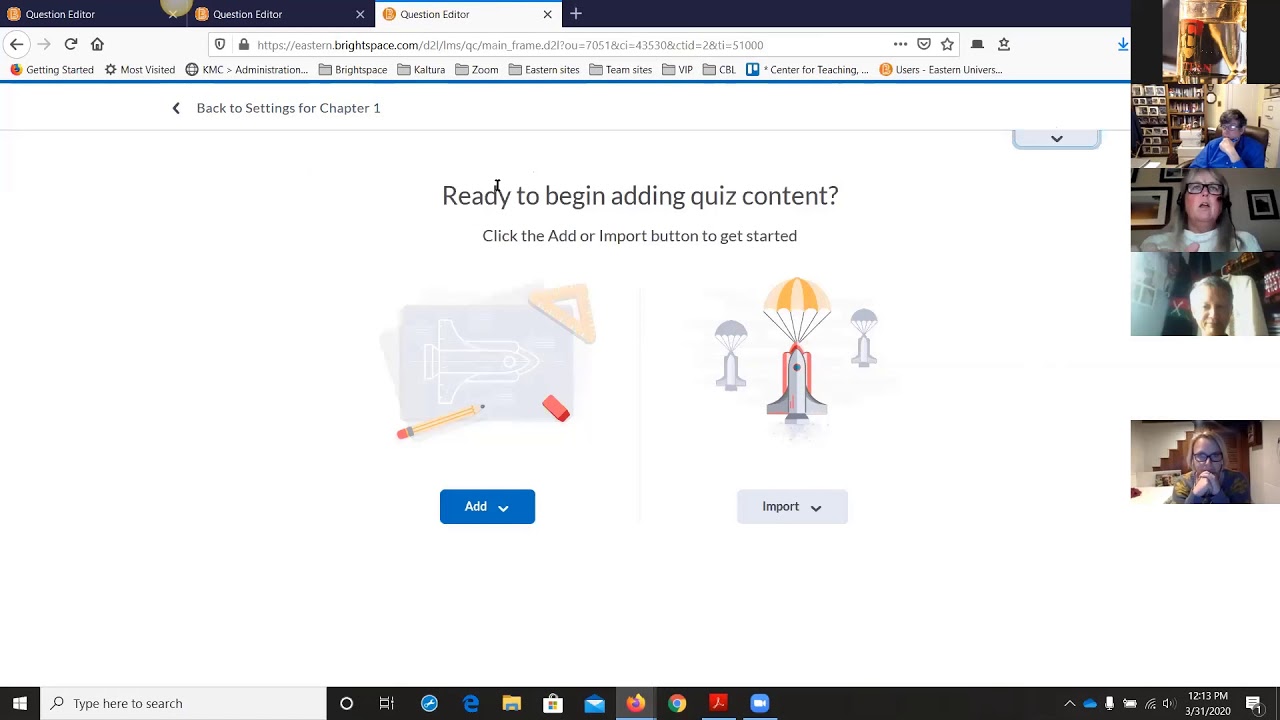
- Quizzes: More Advanced Features
March 31, 2020
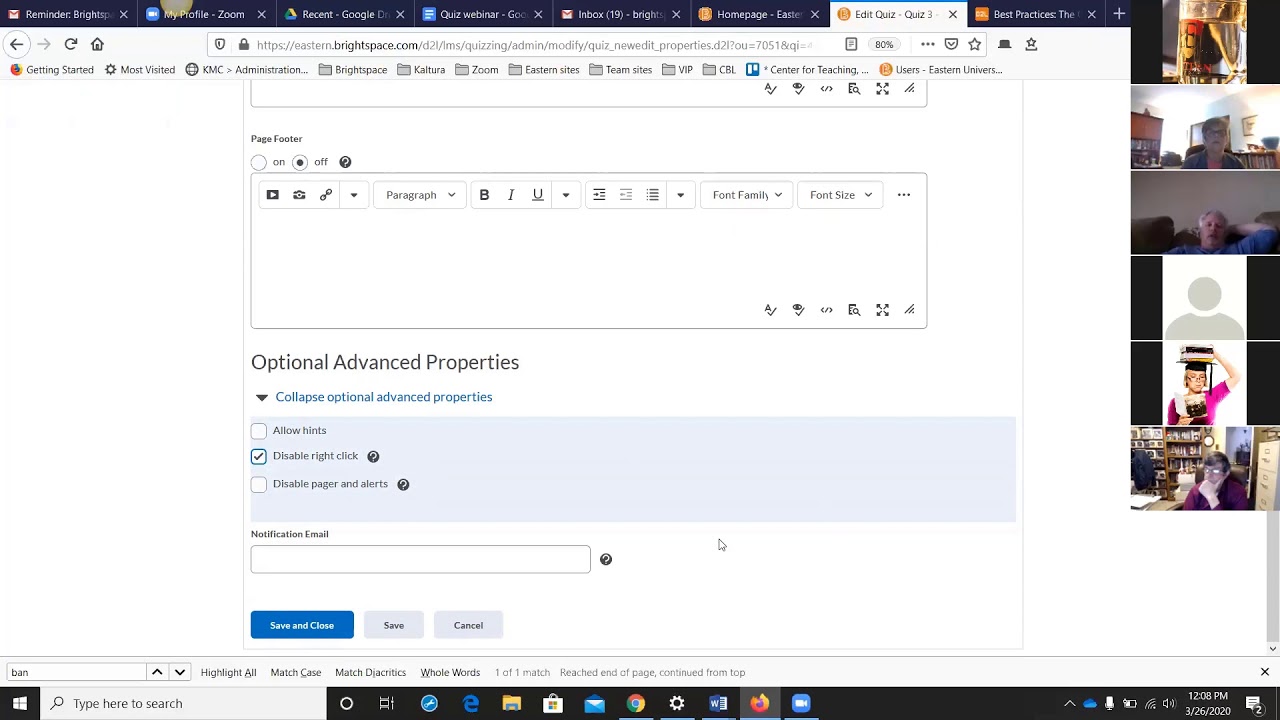
- Quizzes: Going Over the Basics
March 26, 2020